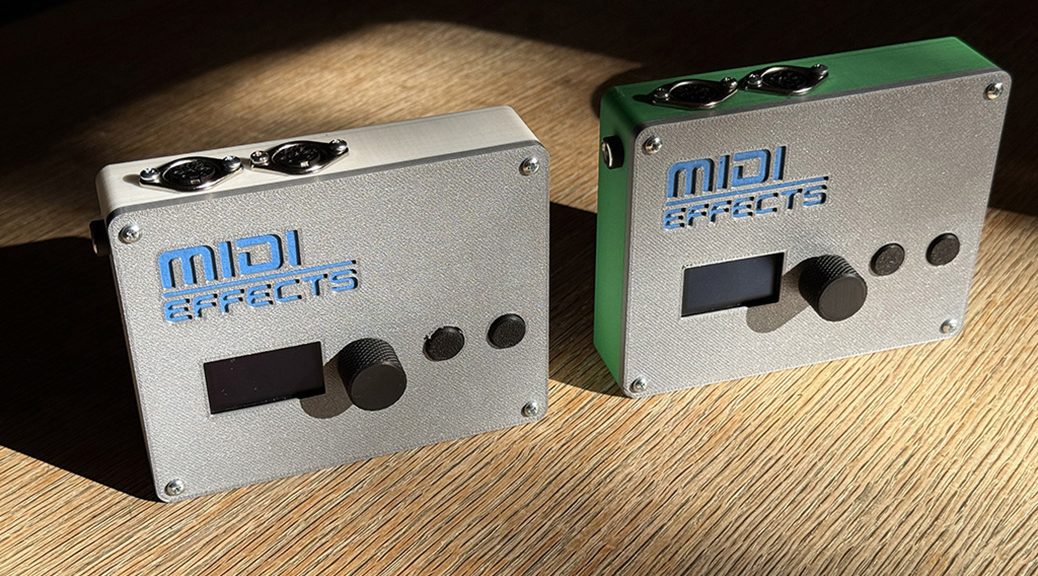

Standalone Hardware MIDI Processor
Three apps. One box. No computer required. The Midi Effects Box is a compact ESP32-powered hardware unit that runs MidiBot, Evolver, and Rotator as self-contained apps. Plug in via 5-pin DIN MIDI or USB-C, dial in your patch from the front panel, and let it generate, rotate, and mutate your MIDI signal all session long. Multi-task mode runs all three simultaneously — each on its own channel, sharing a locked clock. Runs MidiBot, Evolver, and Rotator — simultaneously in Multi-task mode. DIN MIDI I/O + USB-C — works with any DAW, synth, or drum machine. WiFi patch manager and OTA firmware updates from any browser. External MIDI clock sync — locks to any DAW or hardware sequencer.
Order yours today: https://funartssoftware.com/#midifxbox
MIDI FX Box — User Manual
Hardware Overview
Power
Connect a 6–9V DC wall wart to the barrel jack on the back panel. Center-positive, any polarity-protected supply works. The box draws modest current; a 500mA supply is more than sufficient.
MIDI Connections
The box has two 5-pin DIN MIDI jacks and two USB-C ports:
| CONNECTOR | FUNCTION |
|---|---|
| DIN nearest the outer edge | MIDI Output — connect to the MIDI IN of a synth, drum machine, or other receiver |
| DIN nearest the middleof the unit | MIDI Input — connect from the MIDI OUT of a clock source, keyboard, or controller |
| Either USB-C port | Power and/or MIDI — the box appears as “ESP32 MIDI” in your DAW or Audio MIDI Setup |
DIN and USB MIDI output are active simultaneously. Either USB-C port can supply power; a wall wart via the barrel jack and USB power can coexist safely.
Controls
The box has three physical controls:
| CONTROL | NAME | DESCRIPTION |
|---|---|---|
| Rotary encoder | Encoder | Rotate to scroll lists or change a parameter value; press (click) to confirm or select |
| Left button | Previous (B1) | Go to the previous item, parameter, or screen |
| Right button | Next (B2) | Go to the next item, parameter, or screen |
Navigation
The UI is a five-screen state machine. The bottom of every screen shows a page dot bar — a row of segments indicating where you are in the full screen sequence for the current app.
Screen flow
MIDI apps follow the full five-screen path. The System app skips the patch list and goes directly to param editing.
APP SELECT -> PATCH LIST -> PARAM EDITING -> EDIT NAME -> SAVE CONFIRM+-----------------------------------+ | +-- (System) --> PARAM EDITING1 — App Select
The startup screen. Displays the list of available apps — MidiBot, Evolver, Rotator, and System — in order. The selected app is highlighted with > and shown in bold.
| ACTION | CONTROL |
|---|---|
| Scroll through apps | Rotate encoder |
| Enter patch list for selected app (or System params) | Press encoder or press Next (B2) |
A scroll indicator appears on the right edge. Selecting System skips the patch list and goes directly to parameter editing.
2 — Patch List
Shows saved patches for the selected app. ~ Init is always the last entry and resets all parameters to defaults when loaded.
| ACTION | CONTROL |
|---|---|
| Scroll through patches | Rotate encoder |
| Load selected patch then param editing | Press encoder or press Next (B2) |
| Return to App Select | Press Previous (B1) |
Loading a patch automatically sends any configured Program Change messages to the MIDI output.
3 — Param Editing
The main working screen. Shows the current parameter name in the header and its value in large text. When on the Start parameter (first param), the currently-loaded patch name is also shown in the header.
| ACTION | CONTROL |
|---|---|
| Change the current parameter’s value | Rotate encoder |
| Go to previous parameter (at first param, back to Patch List) | Press Previous (B1) |
| Go to next parameter | Press Next (B2) |
| Jump to Start parameter (first param) | Press encoder |
| Advance to Edit Name screen | Press Next (B2) past the last parameter |
Parameter changes take effect immediately. Settings are automatically saved to flash memory 2 seconds after the last change, so your working state survives power cycles without any manual save.
4 — Edit Name
Reached by pressing Next (B2) past the last parameter. Used to name a patch before saving.
An underline cursor shows which character position is active. Rotate the encoder to cycle through the available characters for that position, then use Previous/Next to move to another position. When the name looks right, press the encoder to proceed.
| ACTION | CONTROL |
|---|---|
| Cycle character at cursor | Rotate encoder |
| Move cursor to previous character | Press Previous (B1) |
| Move cursor to next character | Press Next (B2) |
| Discard name edits, return to Param Editing | Hold Previous (B1) for 500 ms |
| Accept name, proceed to Save Confirm | Press encoder |
Characters cycle through: space, A–Z, a–z, 0–9, -, _.
5 — Save Confirm
Shows Save: <name>? and a choice in large text.
| CHOICE | MEANING |
|---|---|
| No | Discard — return to Param Editing without saving |
| Yes | Save the current parameters under the entered name |
| Delete | Delete the currently-loaded patch (only shown if a named patch is loaded) |
| ACTION | CONTROL |
|---|---|
| Cycle through choices | Rotate encoder or press Next (B2) |
| Back to Edit Name | Press Previous (B1) |
| Execute selected choice | Press encoder |
Common Features (All Apps)
Start / Stop
Every app has a Start parameter as its first param. Set it to PLAY to run the app, STOP to halt. When stopped, most apps pass MIDI through to the output transparently.
Patch Management
- Patch names can be up to 16 characters.
- Patches are stored per-app. Each app has its own independent patch library.
~ Initalways appears at the bottom of the patch list and restores factory defaults. It cannot be overwritten or deleted.- Auto-save writes your current parameters to a hidden
_currentslot 2 seconds after any change. This is restored on boot so the box always starts where you left it.
Program Change via MIDI IN
While an app is selected, an incoming MIDI Program Change loads the patch at the corresponding index in that app’s patch list (wrapping if PC number exceeds the patch count). This allows a master controller or DAW to switch patches remotely.
External MIDI Clock Sync
Apps that have an Ext Sync parameter can slave their tempo to incoming MIDI clock (F8 / Start / Continue messages). When Ext Sync is ON, the internal Tempo parameter is ignored and the box locks to the arriving clock.
Shared Clock
When multiple apps are running simultaneously, they share a master clock. The first app to start PLAY becomes the clock master; subsequent apps phase-lock to it automatically. The master tempo is always the one set in the app that owns the clock.
MIDI Thru
There are two independent thru mechanisms:
Global MIDI Thru (System app setting) — when ON, all incoming channel messages are immediately relayed to the MIDI output regardless of which app is selected or whether any app is playing. Use this to keep a connected keyboard always audible while you work with the box.
Per-app Thru In Play (MidiBot and Evolver) — when ON, the app relays incoming MIDI channel messages while it is actively playing. This is for layering the app’s generated notes over a live performance.
Internal MIDI (MidiBot and Evolver) — controls whether an app’s generated notes are injected into the input queues of downstream apps in Multi-task mode. When ON (default), MidiBot feeds both Evolver and Rotator; Evolver feeds Rotator. When OFF, the app’s output goes only to DIN and USB — no other app receives it internally. Has no effect when Multi-task is OFF.
App Reference
MidiBot — Probabilistic Pattern Generator
MidiBot generates notes from a musical scale using a probability engine. Each clock step it decides independently whether to fire a note, and which note to pick from a pool built from the root and mode. It produces rhythmically structured but non-repetitive sequences.
Parameters
| # | NAME | RANGE | DESCRIPTION |
|---|---|---|---|
| 1 | Start | STOP / PLAY | Starts or stops the engine |
| 2 | Thru In Play | OFF / ON | Relay incoming MIDI while playing |
| 3 | Internal MIDI | OFF / ON | When ON, generated notes are also sent to downstream apps (Evolver, Rotator) in Multi-task mode |
| 4 | MIDI Ch | Ch 1–16 | Output MIDI channel |
| 5 | Program | Off / B1/1–B4/128 | Bank and program to send on the output channel. B2/5 means Bank 2, Program 5. Fires immediately on change. |
| 6 | Tempo | 20–300 BPM | Internal clock rate (ignored when Ext Sync is ON) |
| 7 | Ext Sync | OFF / ON | Slave tempo to incoming MIDI clock |
| 8 | Pattern Length | 1–32 | Number of steps in one cycle |
| 9 | Clock Division | 1/16t–1/4d | Step size relative to quarter note |
| 10 | Swing Percent | 0–100% | Delays every odd-numbered step by this fraction of the step duration |
| 11 | MIDI Input | OFF / ON | When ON, incoming Note On messages transpose the Root Note in real time |
| 12 | Root Note | C0–G9 | Lowest note of the scale |
| 13 | Modality | 18 modes | Scale/mode for note selection |
| 14 | Note Range | 1–36 | How many semitones above the root the note pool extends |
| 15 | Play Every | 1–32 | Primary steps fire every N steps |
| 16 | Offset | 0–31 | Shifts the primary step grid by this many steps |
| 17 | Root Probability | 0–100% | Chance that the root note is played on a primary step |
| 18 | Root Velocity | 0–127 | MIDI velocity for primary (strong) steps |
| 19 | Fill Probability | 0–100% | Chance that a fill note fires on non-primary steps |
| 20 | Fill Velocity | 0–127 | MIDI velocity for fill steps |
| 21 | Duration | TRIGGER / SINGLE / SUSTAIN | Note length |
How it works
On each step, MidiBot checks whether the step is primary (falls on a Play Every grid point) or a potential fill (everything else). Primary steps always fire. Fill steps fire only if a random roll beats Fill Probability. The note chosen is either the root (if Root Probability wins) or a random note from the scale pool. Velocity matches the step type.
Evolver — Self-Mutating Step Sequencer
Evolver is a 32-step sequencer that continuously rewrites itself. Each step has three stored values: on/off, pitch (relative to root), and velocity. On every clock pulse, the current step has a chance (set by Mutation) to flip its on/off state and get a new random pitch and velocity. When a new sequence is initialised, Density controls how many of the Pattern steps start as active notes — the rest begin as rests.
Parameters
| # | NAME | RANGE | DESCRIPTION |
|---|---|---|---|
| 1 | Start | STOP / PLAY | Starts or stops the engine |
| 2 | Thru In Play | OFF / ON | Relay incoming MIDI while playing |
| 3 | Internal MIDI | OFF / ON | When ON, generated notes are also sent to Rotator in Multi-task mode |
| 4 | MIDI Ch | Ch 1–16 | Output MIDI channel |
| 5 | Program | Off / B1/1–B4/128 | Bank and program change |
| 6 | Tempo | 20–300 BPM | Internal clock rate |
| 7 | Ext Sync | OFF / ON | Slave to incoming MIDI clock |
| 8 | Pattern | 1–32 | Active pattern length |
| 9 | Clock | 1/16t–1/4d | Step size |
| 10 | Swing | 0–100% | Swing amount applied to odd steps |
| 11 | Root Note | C-1–G9 | Transposition reference |
| 12 | Mode | 18 modes | Scale used when generating new pitches |
| 13 | Range | 1–24 | Scale range in steps |
| 14 | Density | 1–32 | Number of active (ON) steps when a new sequence is generated. Lower values create sparser patterns; higher values fill more steps. Clamped to Pattern length. |
| 15 | Mutation | 0–100% | Per-step probability of mutation each cycle |
| 16 | Freeze | OFF / ON | Halts all mutation |
| 17 | Velocity | 0–127 | Base velocity for generated notes |
| 18 | Dyn Range | 0–64 | Velocity variation around base Velocity |
| 19 | Duration | TRIGGER / SINGLE / SUSTAIN | Note length |
| 20 | MIDI Input | OFF / ON | Incoming Note On sets Root Note in real time |
The 32-step sequence (on/off bits, pitches, velocities) is saved and loaded as part of every patch.
Mode list (used by both MidiBot and Evolver)
| # | MODE | # | MODE |
|---|---|---|---|
| 0 | Ionian (major) | 9 | Chromatic |
| 1 | Dorian | 10 | Harm Minor |
| 2 | Phrygian | 11 | Dorian b9 |
| 3 | Lydian | 12 | Lydian #5 |
| 4 | Mixolydian | 13 | Lydian Dom |
| 5 | Aeolian (minor) | 14 | Mix b13 |
| 6 | Locrian | 15 | Aeolian b5 |
| 7 | Pent Minor | 16 | Augmented |
| 8 | Pent Major | 17 | Fifths |
Rotator — 3-Voice MIDI Transformer
Rotator takes incoming MIDI notes and fans each one out into three simultaneous voices: Main, Parallel, and Harmony. Each voice can be transposed, velocity-scaled, sent on its own MIDI channel, and assigned its own program.
Parameters
| # | NAME | RANGE | DESCRIPTION |
|---|---|---|---|
| 1 | Start | STOP / PLAY | STOP passes MIDI through. PLAY applies the 3-voice transform. |
| 2 | Harm Mode | CHORD / ROTATE | CHORD: always uses H1. ROTATE: cycles H1-H4 with each note release. |
| 3 | Main Trans | -24 to +24 st | Transposition of the Main voice |
| 4 | Main Vel | 0–100% | Main voice velocity percentage |
| 5 | Main Ch | Ch 1–16 | MIDI channel for Main voice |
| 6 | Main Prog | Off / B1/1–B4/128 | Bank/Program sent on Main Ch |
| 7 | Para Trans | -24 to +24 st | Parallel voice transposition |
| 8 | Para Vel | 0–100% | Parallel voice velocity percentage |
| 9 | Para Ch | Ch 1–16 | MIDI channel for Parallel voice |
| 10 | Para Prog | Off / B1/1–B4/128 | Bank/Program sent on Para Ch |
| 11 | Harm 1 Trans | -24 to +24 st | Harmony interval 1 |
| 12 | Harm 2 Trans | -24 to +24 st | Harmony interval 2 (ROTATE mode) |
| 13 | Harm 3 Trans | -24 to +24 st | Harmony interval 3 (ROTATE mode) |
| 14 | Harm 4 Trans | -24 to +24 st | Harmony interval 4 (ROTATE mode) |
| 15 | Harm Vel | 0–100% | Harmony voice velocity percentage |
| 16 | Harm Ch | Ch 1–16 | MIDI channel for Harmony voice |
| 17 | Harm Prog | Off / B1/1–B4/128 | Bank/Program sent on Harm Ch |
Program Change messages in the MIDI input stream are filtered out and not forwarded. Rotator fires its own configured Program Changes when those parameter values change.
System — Device-Wide Settings
The System entry at the end of the App Select list provides device-wide configuration. It has no patch library — changes take effect immediately and are auto-saved to flash 2 seconds after the last change.
Navigation: B1 at the first parameter returns to App Select. There is no Edit Name or Save Confirm screen.
Parameters
| # | NAME | DESCRIPTION |
|---|---|---|
| 1 | Device Name | A name for the box (up to 16 chars). Press the encoder to enter the character editor. |
| 2 | MIDI Thru | Global MIDI Thru — relays all incoming channel messages to output. |
| 3 | Multi-task | When ON, all three MIDI apps run simultaneously. |
| 4 | WiFi | Opens the WiFi scan and connect screen. |
| 5 | About | Press the encoder to display firmware version and system info. |
Multi-task Mode
When Multi-task is ON (System, Multi-task), MidiBot, Evolver, and Rotator all run at the same time. All incoming MIDI clock, transport, and channel messages are broadcast to every app simultaneously.
Each app must have its Start parameter set to PLAY to produce output. Scroll to each app and set Start to PLAY individually.
To set up a multi-task session:
1. Go to MidiBot, patch list, load the patch you want, set Start to PLAY.
2. Go to Evolver, patch list, load its patch, set Start to PLAY.
3. Go to Rotator, patch list, load its patch, set Start to PLAY.
4. Go to System, Multi-task, ON.
MIDI channel assignment — always assign each app to a different MIDI channel before enabling Multi-task:
- MidiBot: MIDI Ch = Ch 1
- Evolver: MIDI Ch = Ch 2
- Rotator: Main Ch = Ch 3, Para Ch = Ch 4, Harm Ch = Ch 5
WiFi Setup
If the box is connected to your local network, you can manage patches and update firmware from any browser.
Connecting to WiFi
1. Go to System in the App Select list.
2. Navigate to the WiFi parameter and press Next (B2) or the encoder.
3. The box scans for nearby networks and displays a scrollable list. Rotate the encoder to select your network, then press Next (B2).
4. A character editor appears for the WiFi password. Rotate the encoder to cycle characters; use Previous/Next to move the cursor; press the encoder to confirm.
5. The box attempts to connect. On success, the IP address is shown briefly on screen.
Credentials are saved to flash. On subsequent boots, the box reconnects automatically.
Finding the box on your network
- mDNS address:
http://midi-fx.local(works on macOS and iOS without any setup) - IP address: shown on the About screen (System, About, press encoder) when WiFi is connected
Web Interface
Once connected to WiFi, open http://midi-fx.local (or the IP address) in any browser.
Status bar
The top of the page shows: device name, firmware version, IP address, and SSID.
Patch Management
Three tabs at the top switch between MidiBot, Evolver, and Rotator.
| ACTION | HOW |
|---|---|
| Download a patch | Click the down-arrow button next to the patch name. Saves a human-readable JSON file. |
| Delete a patch | Click the X button next to the patch name. |
| Upload a patch | Click the upload area and choose a .json file. The file is validated — it must have been saved from the same app. |
Firmware Update (OTA)
1. Scroll to the Firmware Update section at the bottom of the page.
2. Click Choose File and select a .bin firmware file.
3. A progress bar shows the upload progress.
4. The box restarts automatically when the update is complete.
Snapshot — Full Device Backup and Restore
A snapshot captures the entire state of the device: all system settings and every saved patch in every app.
Downloading: Click Download Snapshot in the Snapshot card. The box flushes all live parameters to disk and streams a JSON file. WiFi credentials are not included.
Restoring: Choose a snapshot file in the Snapshot card. A red warning panel appears — click Overwrite to proceed. All existing patches are deleted and replaced with those from the snapshot.
Tips
- Changing tempo while playing: Rotate the encoder on the Tempo parameter. The change takes effect on the very next tick.
- Locking a good Evolver sequence: Set Freeze to ON to stop mutation. Save a patch at that moment to preserve the sequence permanently.
- Layering two apps: Start both MidiBot and Evolver simultaneously. The first one to hit PLAY becomes the clock master; the second one phase-locks to it automatically.
- Remote patch selection: Send a MIDI Program Change to the box to switch patches by number. PC 0 loads the first patch, PC 1 the second, and so on.
- Rotator with a live keyboard: Set Para Trans to -7 (a fifth below) or -12 (octave below) and Harm Mode to ROTATE with four different harmony intervals to create shifting chord inversions as you play.
- Multi-task: always set MIDI channels first: Before enabling Multi-task, assign each app to a distinct MIDI channel.
- Multi-task: navigating doesn’t disturb playback: Scrolling to a different app to tweak a parameter won’t stop the others or reload any patches.
- Freezing an Evolver sequence in multi-task: Set Evolver’s Freeze to ON while it’s running to lock the pattern, then save that patch.